Play a Downloaded Video on Your TV Using Chrome
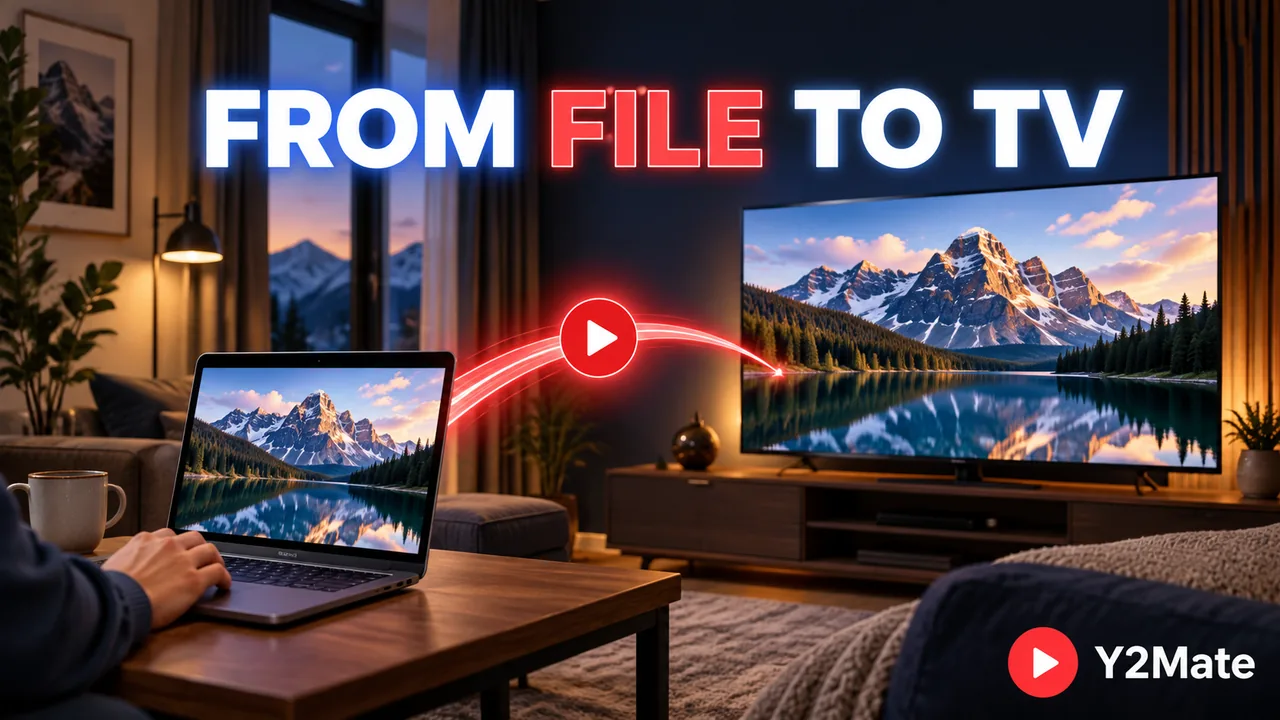
A downloaded video can be easier to watch on a television than on a laptop screen. If you have a compatible Google Cast receiver, Chrome can provide a way to show a locally saved recording on that larger display. Start with a completed, permitted download from Y2Mate and confirm that it plays on the computer before adding the television to the process.
Casting is not the same as copying the file onto the TV. The playback setup still involves the computer, browser, receiver, and network. Keep the original file available and avoid assuming that the television now holds a permanent independent copy.
Prepare the screen and the room
Check that the television or attached receiver supports Google Cast and that the computer and receiver are connected to the same suitable Wi-Fi network. Use an updated Chrome browser. A television being connected to the internet does not by itself establish that it supports this particular casting workflow.
Ask anyone already using the receiver before starting. Selecting an active receiver can replace its current content. Confirm the receiver's name so you do not send the recording to a different screen elsewhere in the home or office. For a shared room, choose an appropriate initial volume before starting a loud recording.
Close unrelated tabs and private material you do not intend to display. This matters especially if you accidentally select full-screen sharing instead of the intended media tab. Preparing the computer first is simpler than trying to hide a personal window after it appears on a large screen.
Open the local video in a Chrome tab
Find the completed recording on your computer. Drag the file into a Chrome tab, or use the browser's file-opening shortcut: Ctrl and O on Windows, or Command and O on Mac. Confirm that the tab contains the intended local video rather than the original download webpage.
Play a short section locally. Check its picture and sound before casting. If Chrome cannot play the file on the computer, moving that tab to a television is not a dependable way to repair the problem. Inspect the file or choose a compatible playback method first.
For example, a demonstration that looks fine as a small preview may reveal unreadable on-screen text when opened fully. Decide whether it is the right recording before inviting someone else to watch. A larger television does not restore detail missing from the source file.
Cast the tab to the intended receiver
Open Chrome's main menu, find the casting command within the sharing controls, and select the intended receiver. For the local-media workflow, cast the tab that contains the video. The controls and permission prompts may vary with the operating system; on recent macOS versions, Chrome can require system access for casting.
Watch the television to confirm that the correct tab appears, then start or resume playback. Check sound at a sensible level. Tab casting and full-screen sharing do not always handle audio in the same way, so verify where the sound is playing instead of assuming the selected picture determines the sound destination.
If the receiver is missing, check the device, network, and permitted discovery settings. Do not disable security software or alter a shared network simply to make a receiver appear. In a managed environment, ask for the approved casting setup.
Separate connection problems from file problems
If playback stutters only on the television, compare it with the local tab. That comparison helps you decide whether to investigate the casting connection or the recording itself. It is more informative than immediately downloading another copy of exactly the same file.
If picture or sound is already wrong locally, read about video containers and codecs. A file extension is not a complete description of compatibility. Similarly, a tall video appearing with space at the sides is not necessarily a failed cast; portrait framing and black bars explain that distinction.
Keep expectations tied to the recording. Casting does not promise higher resolution, repaired color, or improved sound. If you need another source or an available video format, make that choice separately through the MP4 downloader page.
End the session deliberately
When you are finished, use Chrome's casting controls to stop the session. Confirm that the receiver is no longer showing your tab before returning to private browsing or another task. Stopping playback and ending the cast are related but not always the same action.
Keep the local file where you can find it again. If this was a rehearsal for a presentation or group viewing, note the receiver, computer, and playback method that worked. Test the specific file in the actual room before relying on it for an important event, because a successful home test does not establish another network's behavior.
The useful result is simple: the intended recording plays on the intended screen, the sound is where you expect it, and the session ends cleanly. Those checks are more valuable than assuming every television, file, or connection will behave identically.