Check Whether Two Media Files Are Identical with SHA-256
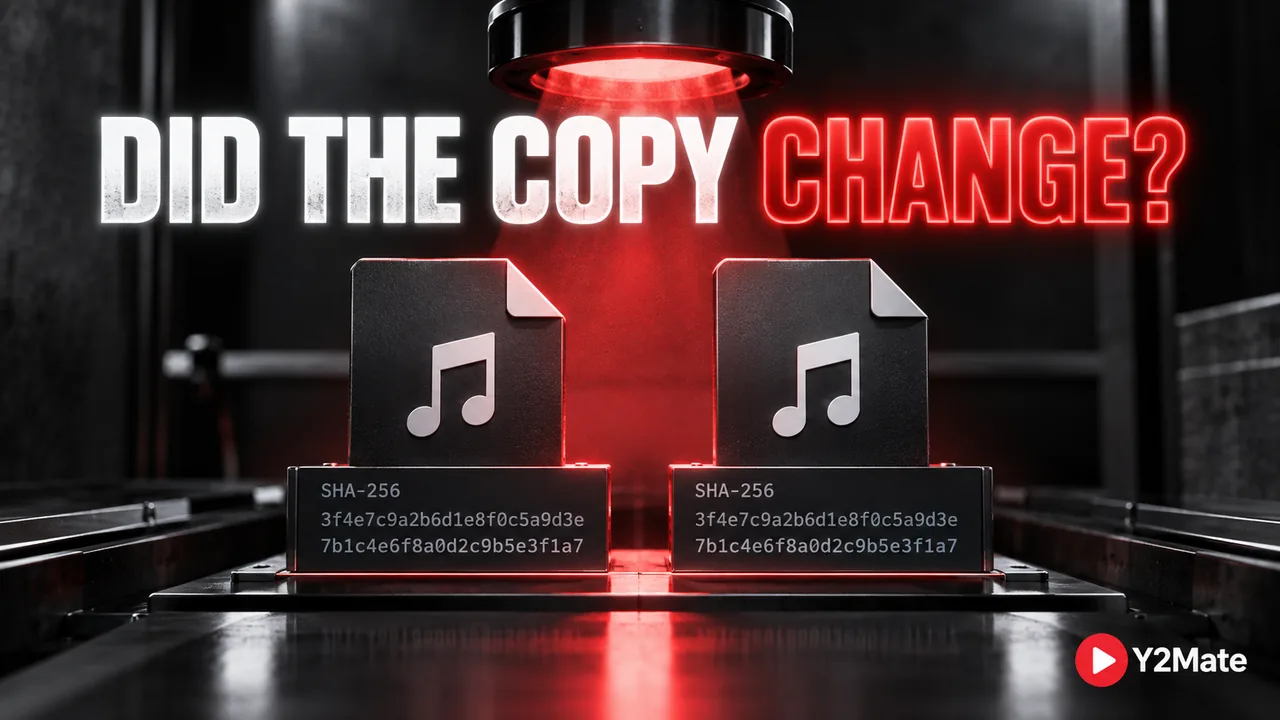
Two files can have the same name and still contain different data. They can also have different names and contain exactly the same data. If you copied a recording obtained through Y2Mate to another folder or drive and want to check the copy, a SHA-256 comparison provides a more precise answer than looking at the filename. It is particularly useful when you want to separate a copying question from a playback question.
This is a read-only check of two specific local files. It does not repair either file, judge the recording's quality, scan it for malware, or establish permission to use it. First choose the two copies you actually mean to compare.
Identify the original and the destination copy
Open their folders in File Explorer and inspect the full paths. A name shown in a player's recent list may not tell you which folder it came from. Close any editor that might be changing the files and wait for copying or downloading to finish before calculating hashes.
For example, imagine a practice recording stored once in Downloads and once on an external drive. Both may be called practice.mp4, but they are separate filesystem objects. Write down the two locations. If you accidentally calculate the hash of the same path twice, identical results tell you nothing about the external-drive copy.
A hash is a compact value computed from file contents. Using the same SHA-256 algorithm for both files allows you to compare their bytes with extremely high confidence. The comparison concerns the complete files, including data that may not affect what you hear or see during playback.
Calculate each hash with a literal path
Open PowerShell under your normal account. Use Get-FileHash with the SHA256 algorithm and the exact path to each file. LiteralPath treats the supplied path literally rather than interpreting characters as wildcard patterns. Replace the example paths below with the two actual locations on your computer; do not paste them unchanged and assume they refer to your downloads.
Get-FileHash -LiteralPath 'C:\Users\YourName\Downloads\practice.mp4' -Algorithm SHA256
Get-FileHash -LiteralPath 'E:\Media\practice-copy.mp4' -Algorithm SHA256
The output identifies the algorithm, hash, and file path. Compare the complete hash values, not merely their first few characters. Also check the paths printed alongside them. If a path is wrong or a file cannot be read, correct the location before drawing a conclusion.
You do not need a command that downloads another script, changes permissions, or requests administrator access for an ordinary readable file. The purpose here is narrowly defined: read two files and calculate a value for each.
Interpret a match without overclaiming
Matching SHA-256 values are strong evidence that these two complete files have identical bytes. If one copy plays differently on another device despite a match, investigate the player, output device, or playback settings instead of assuming that copying reduced the media quality.
A match does not tell you whether the original recording was good, complete, or safe. An unwanted file can be copied perfectly. The separate checklist for checking a downloaded media file remains relevant. Hash comparison answers an integrity question, not every question you might have about the file.
It also does not decide which file should be retained. You may have a sensible reason to keep a verified copy in another location. Choose your storage arrangement deliberately rather than automatically deleting one file just because the hashes match.
Investigate a mismatch before repeating the download
Different hashes mean the compared bytes differ; the hash alone does not explain why. Start with the straightforward possibilities. Did you choose two different versions? Was one copy still being written? Did an editor save changes? Did one file receive different tags or other embedded metadata?
Changing embedded information can change the hash even when the audible performance seems the same. Conversely, simply changing a filename does not necessarily change file contents. Keep the distinction between the name and the bytes clear while checking what happened.
If your aim was an exact copy, make another copy from the confirmed original to a clearly identified destination and check those two files. Preserve the existing files while investigating. Do not format a drive or erase a folder because one comparison differs.
Combine the result with a playback check
After verifying the copy, open it in the application where you intend to use it. For video, check both audio and picture; for a long recording, check a later passage as well. The explanation of containers and codecs can help if an unchanged file behaves differently across players.
Keep a short note of the two paths and the result when the comparison matters. For a new source recording, return to the YouTube Downloader and inspect the available download. For an existing copy, the disciplined sequence is to identify the files, calculate both hashes, interpret the comparison narrowly, and test playback separately.